Create a Graph With AI: Describe It, Review the Draft, Run It
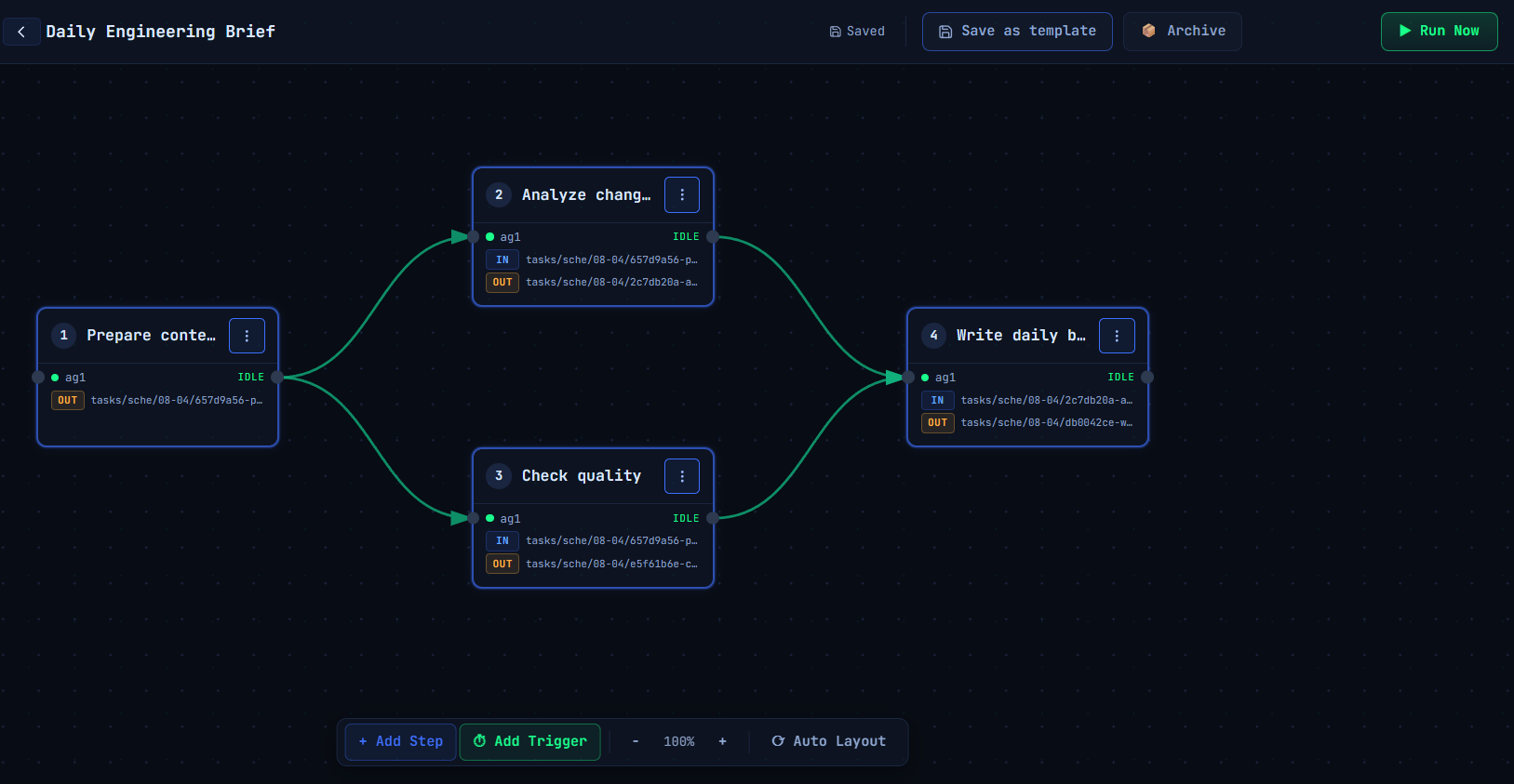
Every graph in CTRL NODE has started the same way until now: an empty canvas, and you dragging nodes onto it one at a time. That's fine once you know the shape you want. It's friction when you don't — when the hard part isn't placing nodes, it's figuring out the topology in the first place: which steps can run in parallel, which one has to wait for two others to finish, which files need to pass between them.
Create with AI removes that first blank-canvas step. You describe the graph you want in a sentence or two, CTRL NODE proposes a full draft — nodes, connections, and task content — you review it, and only then does anything get created. Nothing runs during the draft. No task is spawned, no session is opened, no file touches disk until you say so.
This is a big enough shift in how graphs get built that it deserves the full walkthrough, not just a changelog line. Here's what it looks like end to end, using a real example: a daily engineering brief that fans out into two parallel checks and fans back in to a single decision.
1. Start from a description, not a blank canvas
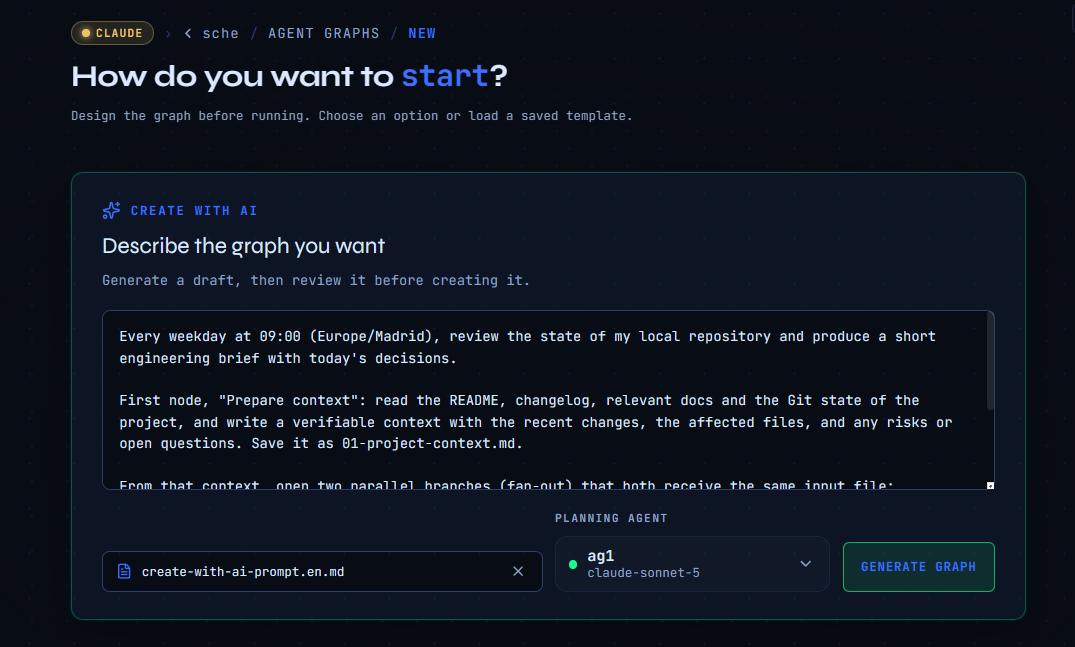
Open Agent Graphs → New and pick Create with AI instead of the empty canvas. You get one field: describe the graph you want.
For this example, the prompt describes a daily job that reads the local repo, splits the analysis into two independent checks, and merges the results into one short brief:
Every weekday at 09:00 (Europe/Madrid), review the state of my local repository and produce a short engineering brief with today's decisions.

First node, "Prepare context": read the README, changelog, relevant docs and the Git state of the project, and write a verifiable context with the recent changes, the affected files, and any risks or open questions. Save it as 01-project-context.md.

From that context, open two parallel branches (fan-out) that both receive the same input file:
- "Analyze changes": assess the impact of the recent changes — which components or flows changed, compatibility concerns, risks and recommended actions. Save it as 02-change-analysis.md.
- "Check quality": review quality and release readiness — run only test commands that are already configured and lightweight, without installing anything or modifying the project, and classify the result as Ready, Needs review, Blocked, or Unverified. Save it as 03-quality-readiness.md.

A final node, "Write daily brief", acts as the fan-in: it waits for both files above, reconciles any differences between them, picks a final status (Ready / Needs review / Blocked) and proposes up to three next actions ordered by priority. Save it as 04-daily-engineering-brief-YYYY-MM-DD.md, using today's actual date. Maximum 500 words.

All nodes work on the same local working directory (the project repository), must not modify project files or run any destructive actions, and must not invent data — if something can't be verified, say so explicitly. Each node cites the paths and commands it used as evidence in its output.
You can optionally attach a Markdown file for extra context, browse the workspace, and pick which agent does the planning — any connected provider can be assigned to draft the graph, not just Claude.
2. Review the proposed draft before anything exists
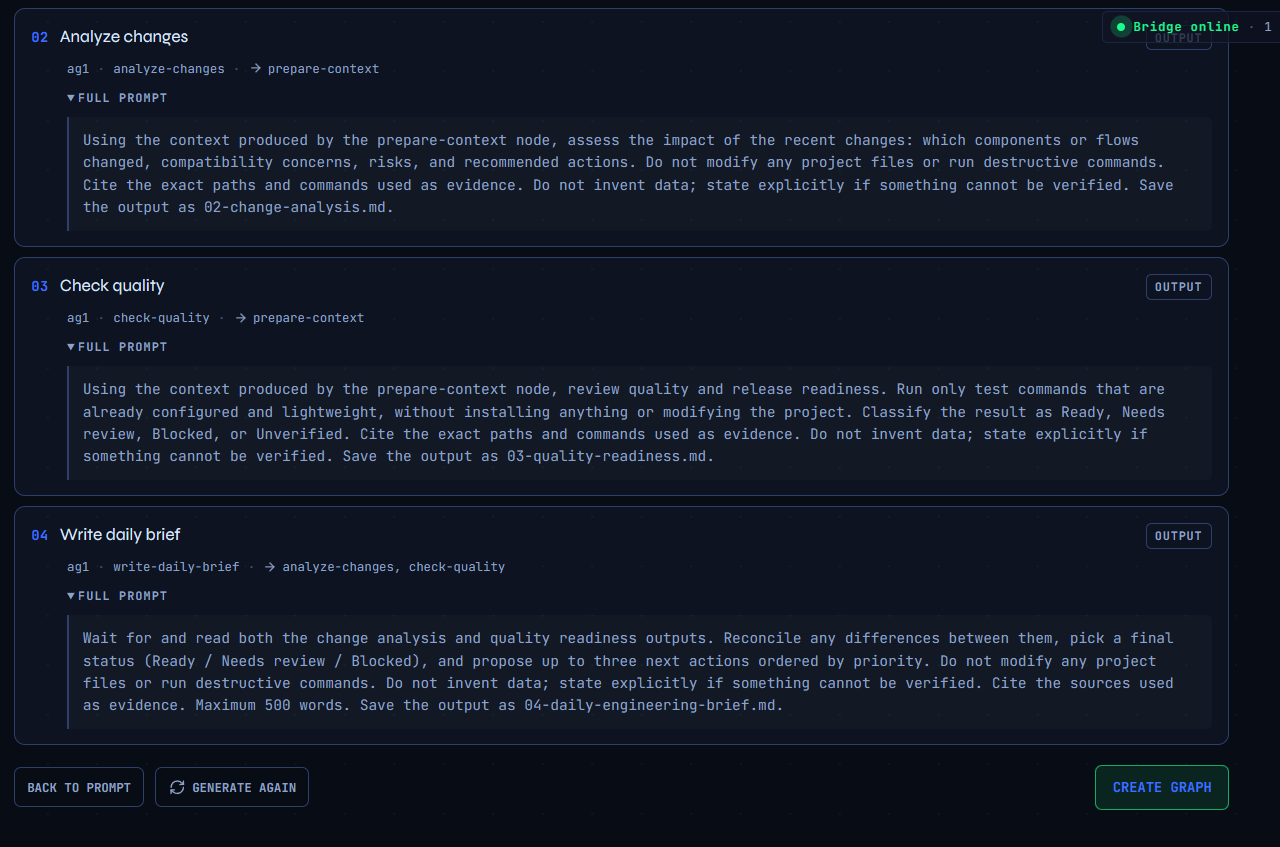
This is the part that matters most. Generating a draft is a read-only call — it produces a structured proposal, nothing more. No task folder is created, no agent session is opened, and the draft never shows up in task history. If the model times out or comes back with garbage, you've lost nothing.
What comes back is the full shape of the graph: every node it identified, how they connect, and the content each task would run with — the same four-node structure from the prompt above, with the fan-out (Analyze changes / Check quality) and the fan-in (Write daily brief) already laid out correctly, not flattened into a linear chain.
This is where you actually look, not just skim. Check that:
- the topology matches what you asked for — branches that should run in parallel actually fan out, and the merge node actually waits for both;
- each task's instructions are specific enough — output file names, what each node should and shouldn't touch;
- nothing was invented that wasn't in your prompt.
3. Confirm, and the real graph gets created
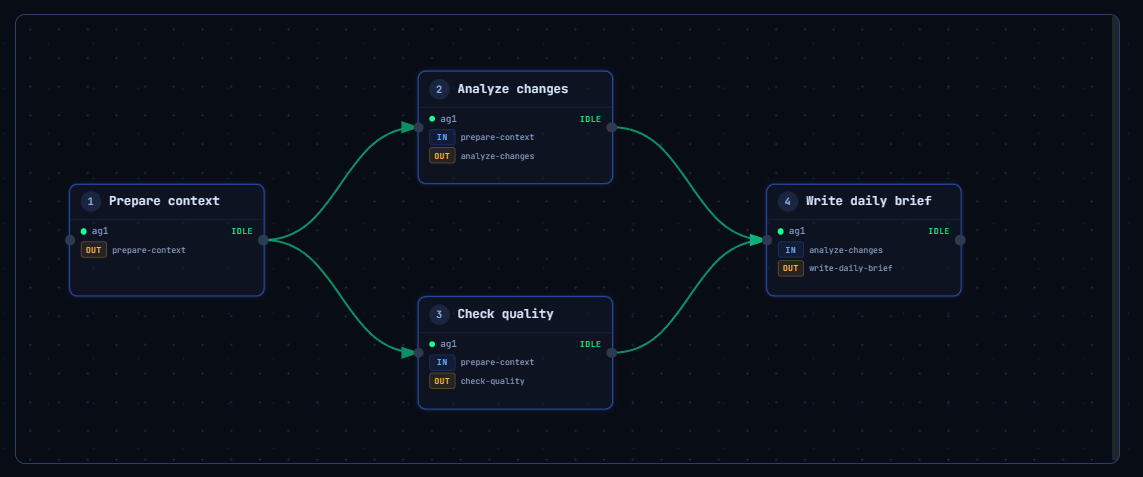
Once the draft looks right, confirming it turns the proposal into an actual graph on the canvas: real nodes, real connections, real task content — now editable exactly like anything you'd built by hand. This is also the moment to wire up what a draft can't infer on its own: the working directory each node should use, which agent runs which node, and the trigger — in this example, Daily · 09:00 · Europe/Madrid, connected to the first node.
Nothing about the graph is "AI-only" from this point forward. It's a normal graph that happens to have started from a description instead of an empty canvas.
4. Run it, and watch the fan-out / fan-in play out
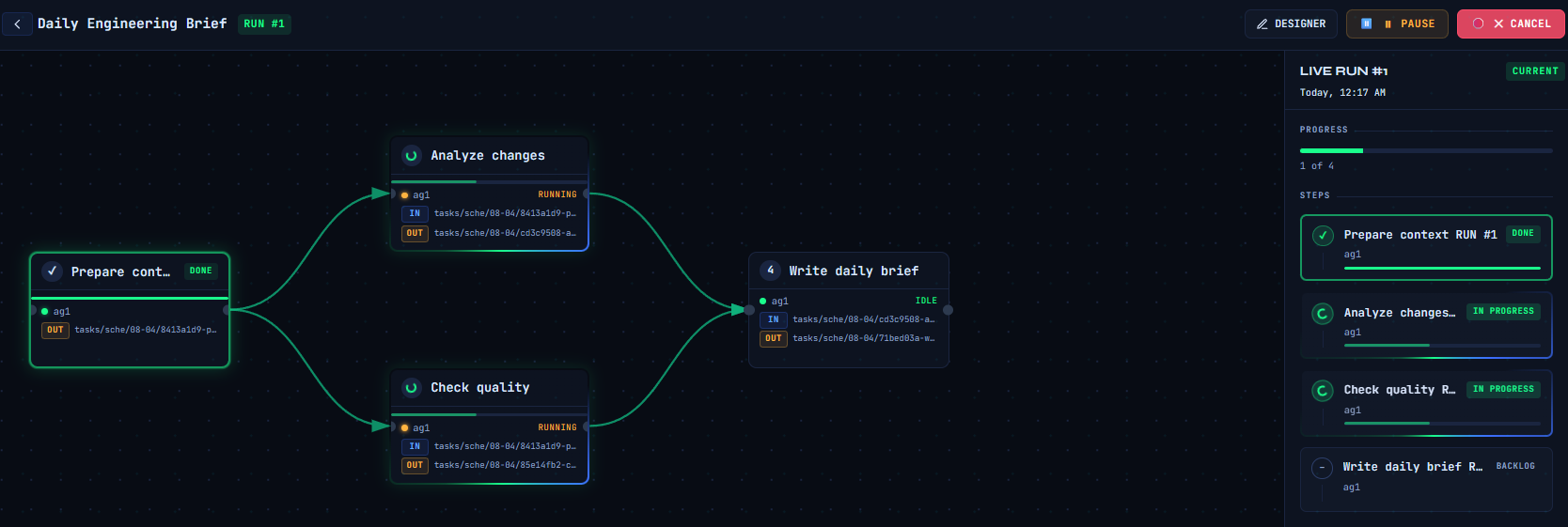
Hit Run now and the execution view shows exactly the shape you designed: Prepare context runs first, Analyze changes and Check quality start together the moment it finishes, and Write daily brief sits waiting until both of those land before it starts. Each node streams its own activity, and the four output files — 01-project-context.md through 04-daily-engineering-brief-*.md — appear in the workspace as the run progresses.
Works with every provider
Draft generation isn't tied to one model. It's implemented across every provider the Bridge supports — Claude Code, Claude Agent SDK, Codex, Copilot, Cursor, Gemini, Hermes, OpenClaw, OpenRouter, and Ollama — so whichever agent you already have connected can be the one that plans the graph. It's bounded to a short timeout so an abandoned draft never ties up an agent, and it cleans up after itself: the throwaway planning session never lingers once the draft is returned.
Try it
Open Agent Graphs → New → Create with AI and describe the workflow you actually need, instead of building it node by node. The example above is a good template for anything with the same shape — a status check, a security review, a release readiness pass — describe the branches you want to run independently and the one that should bring them together, and let the draft do the first pass.